Digital Media & Multimedia Design

at McFatter Technical College | Gabriel D'Amato

Menu

Skip to content
  • About Course ▼
    • Meet the Instructor
    • Gradebook Categories & Weights
    • Classroom AI Usage Policy
    • Required Equipment, Software & Book List
    • Suggested Equipment
  • Quick Links ▼
    • Focus Gradebook
    • LinkedIn Learning
    • Microsoft TEAMS
    • Project Design Briefs
  • Adobe ▼
    • Adobe Certification FAQ
    • Certiport
    • Gmetrix
    • Adobe CC Signup Form
  • How to… ▼
    • … turn in Video Assignments.
    • … turn in LearnKey Assignments.
    • …embed Google Slides.
    • …embed a Google video.
    • …write WordPress Posts.
  • Extras ▼
    • Design Practice Games
    • Photo Skills Challenge
    • Mobile App Design Challenge
  • Course Sections ▼
    • OCP-A: Theory & Foundations of Design
    • OCP-B: Multimedia Digital Designer
    • OCP-C: Multimedia Web Interactive Desinger
    • OCP-D: Multimedia Integrated Producer Designer
  • [PS] Course Sections ▼
    • [PS] OCP-A: The Theory & Foundations of Design v25
    • [PS] OCP-B: Digital Multimedia Designer v25
    • [PS] OCP-C: Multimedia Web Interactive Designer v25
    • [PS] OCP-D: Multimedia Integrated Producer Designer v25

Embed a Google Drive Video on Your WordPress Portfolio

Hey there! So, you’ve got a killer video saved on your Google Drive, and you want to show it off on your WordPress.com portfolio? Awesome choice! Embedding a video from Google Drive isn’t as straightforward as, say, YouTube, but don’t worry—I’ve got your back. Follow these easy steps, and you’ll have that video up and running in no time. Let’s dive in!


Step 1: Upload your video to Google Drive…

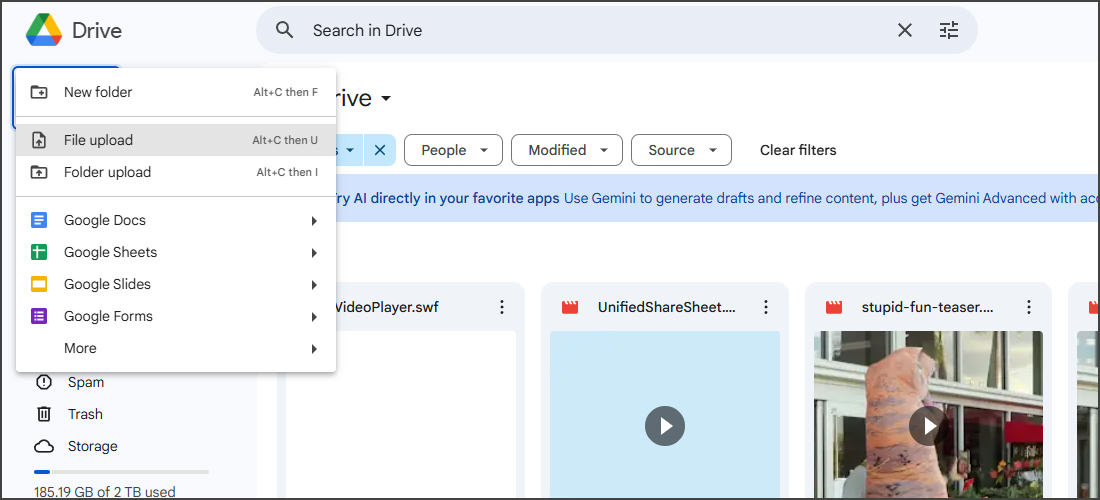
First things first, make sure your video is uploaded to Google Drive. If it’s already there, great! If not, here’s how to get your video uploaded to your Google Drive:

1. Go to drive.google.com, and get logged in (if not already).

2. Click the + New button on the left sidebar.

3. Select File Upload and choose your video file.

4. Wait for the upload to finish. Something… something… lemon squeezy?

Step 2: Time to make the video shareable…

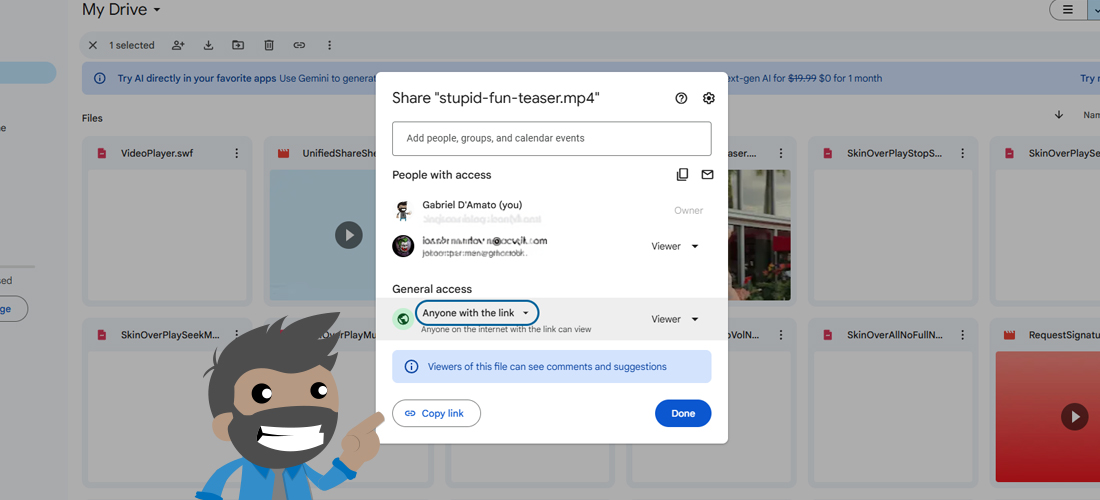
For your video to be embeddable, it needs to be publicly accessible or “shareable”. Google can’t embed a video that is private. Here’s how we set that up:

1. In Google Drive, find your video and give it a right-click.

2. Select Share > Share. Yes, the sub item for Share is Share. *shrug*

3. Under General access, change the setting from Restricted to Anyone with the link.

4. Click the Copy link button on the bottom left of the pop-up window to get the code we need.

Step 3: Let’s generate the embed code…

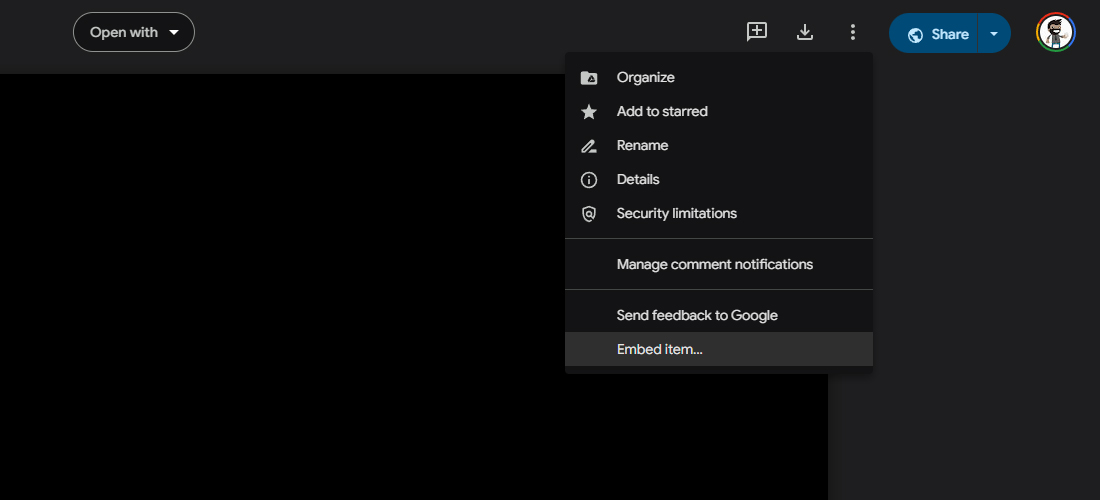
Google Drive doesn’t give you a direct embed code, but we can work around that. It takes a few extra steps, but here’s how we get the code we need:

1. Open the link you just copied in a new browser tab. You should be able to just paste (CTRL+V)it it in a new URL bar.

2. Click the three dots at the top right of the window, then click Embed item…
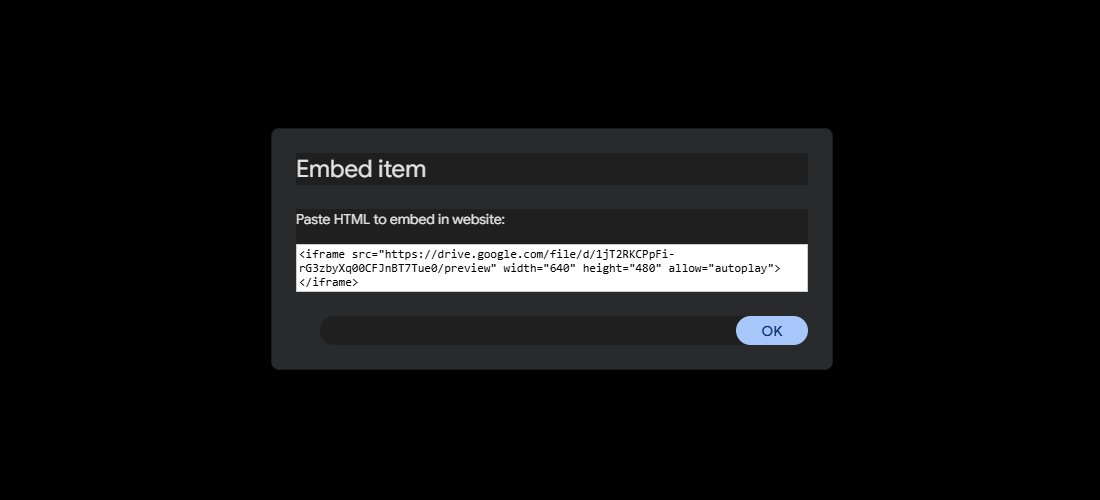
3. This will give you another pop-up that has our embed code! Highlight and copy (CRTL+C) the code. This is your embeddable link! Off to WordPress we go!

Step 4: Add the video to your WordPress portfolio…

We’re almost done, I promise. Now comes the fun part—embedding the video into your WordPress site. Here’s how we get this part done.

1. Log in to your WordPress dashboard.

2. Go to the page, post or portfolio where you want to add the video. If you need to make a new one, do that now.

3. Click the + button to add a new block. Search for the Custom HTML block and select it.

4. Paste (CRTL=+V) the embed code into the Custom HTML block.

5. Click Preview to make sure your video shows up correctly. If everything looks good, hit Publish or Update to save your changes.

You did it! Your video should now be embedded right on your WordPress site! What a champion!

Widgets

Recent Ramblings & Articles

  • The Not-So-Serious Survival Guide to Typography
  • Three great sites to help you with pairing your fonts!
  • New Student Form
  • Sample Blog Post
  • Great Slide Deck & Presentation Sites

The School Board of Broward County, Florida, prohibits any policy or procedure which results in discrimination on the basis of age, color, disability, gender identity, gender expression, genetic information, marital status, national origin, race, religion, sex or sexual orientation. The School Board also provides equal access to the Boy Scouts and other designated youth groups. Individuals who wish to file a discrimination and/or harassment complaint may call the Director, Equal Educational Opportunities/ADA Compliance Department & District’s Equity Coordinator/Title IX Coordinator at 754-321-2150 or Teletype Machine (TTY) 754-321-2158.

Individuals with disabilities requesting accommodations under the Americans with Disabilities Act Amendments Act of 2008, (ADAAA) may call Equal Educational Opportunities/ADA Compliance Department at 754-321-2150 or Teletype Machine (TTY) 754-321-2158.

Classroom Hours & Info

6500 Nova Drive
Davie, Florida 33317
PS Class Hours
8AM - 11:30AM (Class)
12PM - 2:30PM (Online)

HS Class Hours
1PM - 4PM

Instructor Email gabriel.damato@browardschools.com for questions regarding this program. For information and registration dates, please contact the Communications Department Counselor at 754-321-5700
Create a website or blog at WordPress.com
  • Subscribe Subscribed
    • Digital Media & Multimedia Design
    • Join 26 other subscribers
    • Already have a WordPress.com account? Log in now.
    • Digital Media & Multimedia Design
    • Subscribe Subscribed
    • Sign up
    • Log in
    • Copy shortlink
    • Report this content
    • View post in Reader
    • Manage subscriptions
    • Collapse this bar