You can actually get FREE access to LinkedIn Learning if you currently live, work, attend school, or were born in Broward County. If you are enrolled in the Digital Media/Multimedia Design course, that means you!
We use LinkedIn Learning for almost all of our Training Videos in the DMMD Course. You will need to set up a Broward County Library Card and an Alvin Sherman eCard to be able to access these videos. Follow the directions below.
Getting Access to LinkedIn Learning
There are a few steps you will need to take in order to gain access to LinkedIn Learning. Follow the instructions below to set up all the cards you will need, and don’t lose your login information!
Step 1: Get a Library Card
First things first, you need a Broward County Library (BCL) Card Number. If you have one already, you are one a lucky one (skip to Step 2). If you don’t have one, we will need to get one by filling out the Instant eCard Online Registration form. Make sure you double check your information, because you will have to recall what info you gave them in a later step. Once this step is complete, you need to wait for a confirmation email from the library which will issue your card number.
Step 2: Make it a “Real” eCard
Once you have your Broward County Library card number you need to turn it into an . (I know the first one said it was an “eCard”, but it’s not the RIGHT kind of eCard yet.)
Visit Alvin Sherman eCard page, and click the button that says “Apply for an E-Card”. Then provide your card number, last name, and the last four digits of your phone number exactly as you provided it in Step 1. Once that is complete, your card is now the correct type. You will still use the same BCL Card Number, it’s just got a fancy new hat on it. Rejoice, for you are prepared for Step 3!
If you get errors when trying to apply here, you will need to either call (954) 262-4600 for assistance, or visit the library in person to have it resolved. The Instructor cannot help you with this process, because I don’t work for the library… sorry. Usually the error is the address or phone number of your registration doesn’t match the information you are using now. Good luck, adventurer!
Step 3: Log in to NSU Sherman Library
With your shiny new upgraded card, you are ready to log into the NSU Sherman Library Portal to find access to our videos.
Step 3a: Log in
Use the GREEN portal and provide your LAST NAME and LIBRARY CARD NUMBER, then click Log In. Use the next image as a reference.
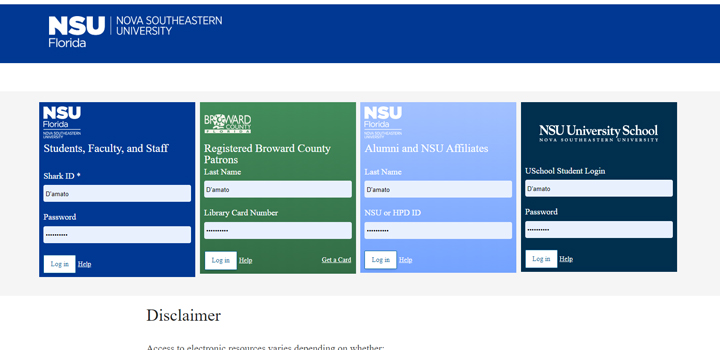
Step 3b: Search the Database
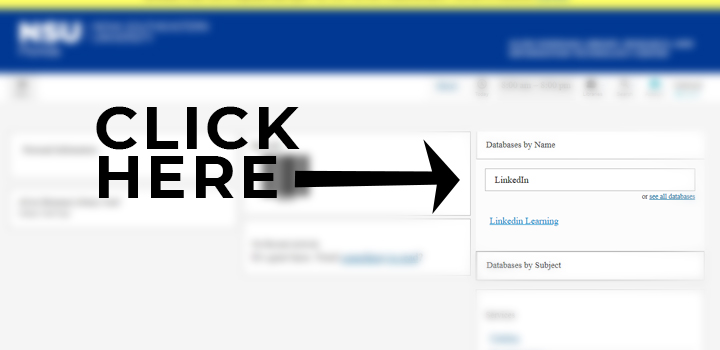
Then you should see a screen that looks like the next image. You will need to click Databases By Name, and then search the term “LinkedIn Learning”, and lastly click the resulting hyperlink that says LinkedIn Learning.
Step 3b: Log in… again for some reason?
This will prompt you to log in again just like step 3a. Use the green portal, use your information. Once you log in again, you will have access to the LinkedIn Learning Videos we use in class for assignments and learning modules. Just click any link on this website to take you straight to the video lessons you need.
Step 4: You did it!
You should remain logged in on the computer and browser you followed this process on, without a need to log in again in the future. You should be able to click the links provided on this website, and be taken directly to your video lessons. If you want to be able to access the videos on another device, you will need to follow Step 3 of this process again for that device. Not a big deal, but slightly annoying.
 Digital Media & Multimedia Design