

So you’ve survived the timeline, you’ve poked at a keyframe or two, and maybe you’ve even gotten a shape to wiggle across the stage without losing your mind. Congrats—you’re officially past “total noob” level in Adobe Animate CC. But here’s the deal: if you want to actually get good, you’ve got to practice. And not just endless, boring practice, but quick, focused challenges that sharpen your skills and make you think like an animator.
That’s where this comes in: the 30-Minute Animate Challenge. I’m giving you a list of bite-sized exercises, each designed to teach a different core skill inside Animate. You pick one, I will set the timer, and we will get to work! This is for extra credit. Yes, really. You’re not just racking up bonus points, you’re also secretly building the kind of animation muscles that will make your bigger projects so much easier.
Why 30 Minutes?
Animation can easily eat your life if you let it. But deadlines force clarity. In 30 minutes, you don’t have time to obsess over every pixel. Instead, you focus on working smart from the start: setting up the file correctly with proper dimensions, frame rate, and clear layer names, choosing the right tool for the task such as a shape tween for smooth transformations or frame-by-frame for detailed motion, and most importantly finishing the animation and exporting it, even if the result is simple. Speed + focus = learning. Trust me.
#1 The Bouncing Ball
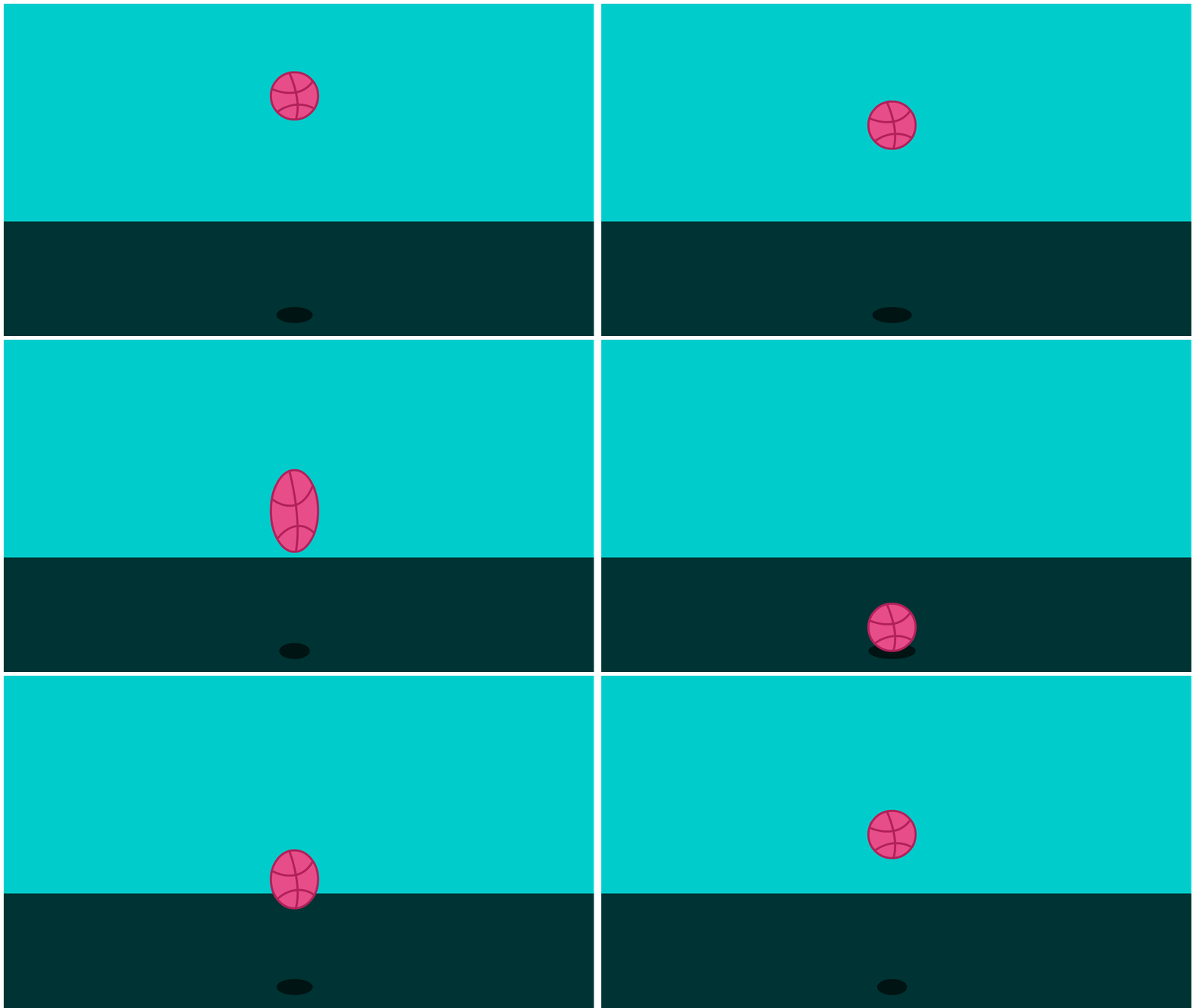
This is the classic animation starter project. Draw a simple circle, drop it from the top of the stage, and animate it bouncing three times. The bounce should lose height each time to feel realistic. Add easing so gravity looks like it is in control rather than your mouse. This challenge teaches timing and spacing, it gives practice with easing curves inside the motion editor, and it reinforces the importance of arcs in movement because nothing in nature bounces in a straight line.
#2 Shape Morph Madness
Start with one basic shape like a square and morph it into something totally different such as a star or a heart. Set up a shape tween and experiment with color changes partway through the transition. The lesson here is in understanding how shape tweens work, how they differ from motion tweens, and how to maintain clean visual consistency when one form transforms into another.
#3 Logo Spin
Import or design a simple logo or even just your initials. Animate the logo spinning a full rotation while it scales up from small to large. Try fading the background for extra flair. This exercise develops an understanding of rotation and scaling, the importance of pivot points, and the use of motion tweens and paths to create polished branding animation.
#4 Interactive Button Glow
Create a button symbol with a label and design hover states so that it glows or changes color when the mouse rolls over. Export it as an HTML5 Canvas and test it in a browser. Through this exercise you learn how symbols and their states function, how interactivity is introduced into Animate, and how small visual details can dramatically improve the user experience of a button
#5 Frame by Frame Walk Cycle
Draw a stick figure and build an eight frame walk cycle that loops smoothly. Focus on the motion of the legs to make the cycle feel convincing. This project provides practice with frame by frame animation, the use of onion skinning to check motion across frames, and the fundamentals of looping cycles which are the backbone of character animation.
#6 Sound Sync Fun
Import a short audio clip such as a clap, a beep, or a laugh. Animate a character or object so that it reacts in perfect sync with the sound. The value of this challenge lies in learning how to import and sync audio in Animate, how to build event based animations, and how to match visual timing to rhythm or sound cues.
OCP Linkages for All Challenges
DIG0082 – 05.01: Demonstrate proficiency in advanced design.
DIG0082 – 05.03: Apply basic principles of animation such as squash and stretch, timing, and spacing.
DIG0082 – 05.04: Demonstrate proficiency in using fonts and visual hierarchy for design projects.
DIG0082 – 05.05: Demonstrate proficiency in authoring and animation software.
DIG0083 – 17.05: Use time based media editing software to create and edit a movie that includes animation, audio, and transitions.
DIG0083 – 17.06: Collaborate with team members to plan, edit, and present multimedia projects.
DIG0083 – 17.08: Plan, create, edit, and present time based media projects with multiple design elements.
DIG0083 – 18.01: Collaborate to evaluate and present multimedia projects.
DIG0083 – 19.01: Use authoring software to plan and create digital media campaigns that include animation and interactivity.
DIG0083 – 20.02: Create and publish a digital portfolio.
DIG0083 – 20.03: Market digital media and multimedia design skills for employment.
 Digital Media & Multimedia Design