Throughout the DMMD program, you’ll notice that we rely heavily on online video courses — and that’s completely intentional. Instead of making you buy a shelf full of textbooks (eight of them, to be exact), I’ve replaced all of that reading with carefully selected, high-quality video content that is more current, more visual, and far more relevant to how you’ll actually work in the real world.
These video tutorials aren’t just filler or “extra” content — they’re core lessons tied directly to the weekly learning objectives for each section of the course. Every video has been chosen to help you understand specific tools, techniques, or workflows related to the software and hardware we use — whether that’s Photoshop, Illustrator, WordPress, Premiere Pro, After Effects, or anything else we dive into. If you’re unfamiliar with a tool or feel lost during a project, there’s a very good chance that the assigned video for that week explains exactly what you’re struggling with — if you’ve watched it.
And here’s the key: these aren’t optional. Watching and learning from these videos is part of your responsibility in this class, just like attending lectures or turning in projects. Many of your graded assignments (including quizzes, design challenges, and weekly posts) are based on what’s taught in these videos. Skipping them doesn’t just mean missing out — it means walking into your projects underprepared, which leads to poor results and lower grades.
Think of these video courses as your personal mentors — they’re available 24/7, they don’t get tired of repeating things, and they’re here to make sure you can follow along at your own pace. Use them wisely, and they’ll give you an edge that goes way beyond the classroom. Ignore them, and you’re choosing to make the class harder than it has to be.
Bottom line: watch the videos. Take notes. Ask questions. They’re one of the most important resources you’ll have all year.
LinkedIn Learning Video Assignments
Once you have watched the entire video, you can turn in the assignment by sharing the link you have published to your LinkedIn account (if you have it shared to Public… which you should…). If you haven’t set up a LinkedIn account, you will need to do that first.
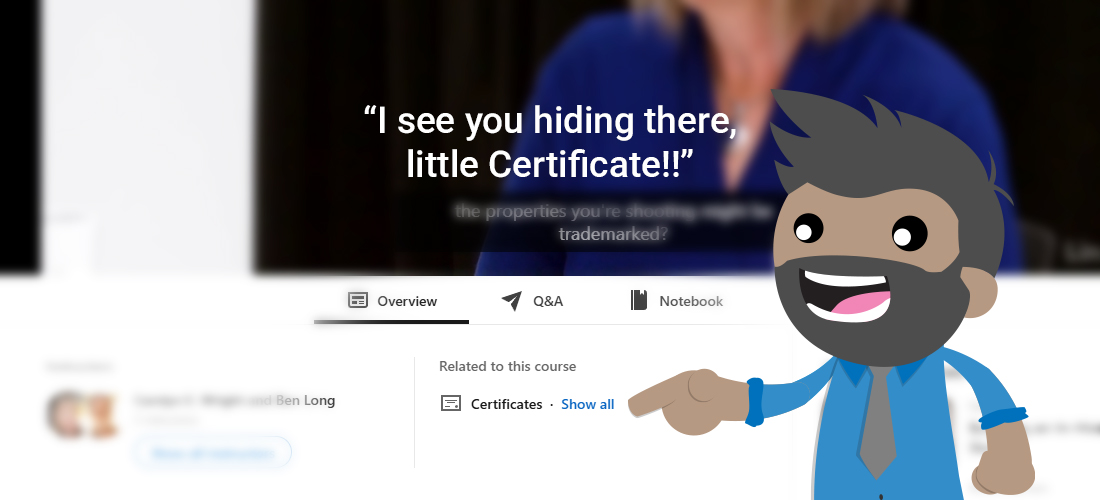
Step 1: Find the Certificate section under the video. Click “Show All” to get started! If you haven’t finished the video, the link won’t have any content yet.
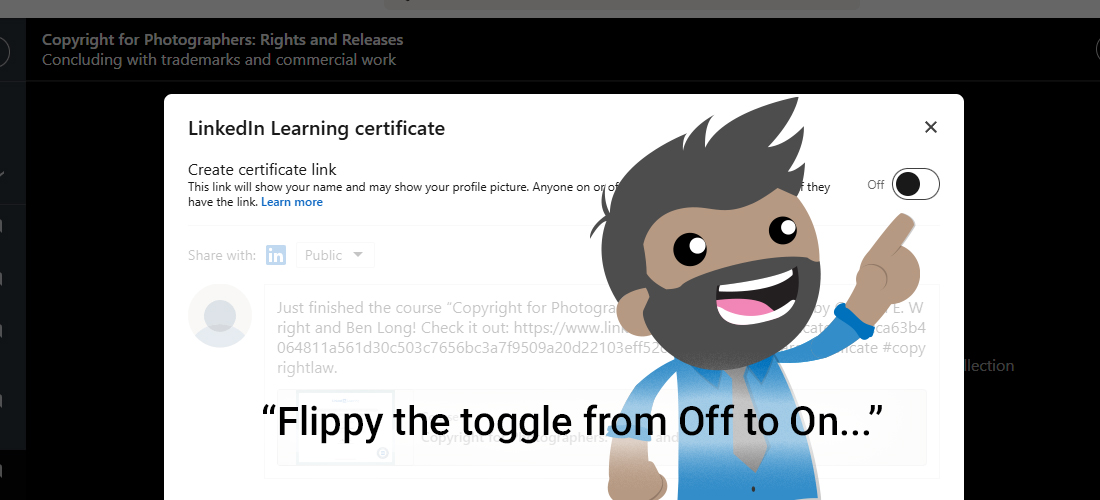
Step 2: Create your Certificate Link by toggling the OFF over to ON. This link will now be publicly available so that you can copy/paste it to turn it in via email.
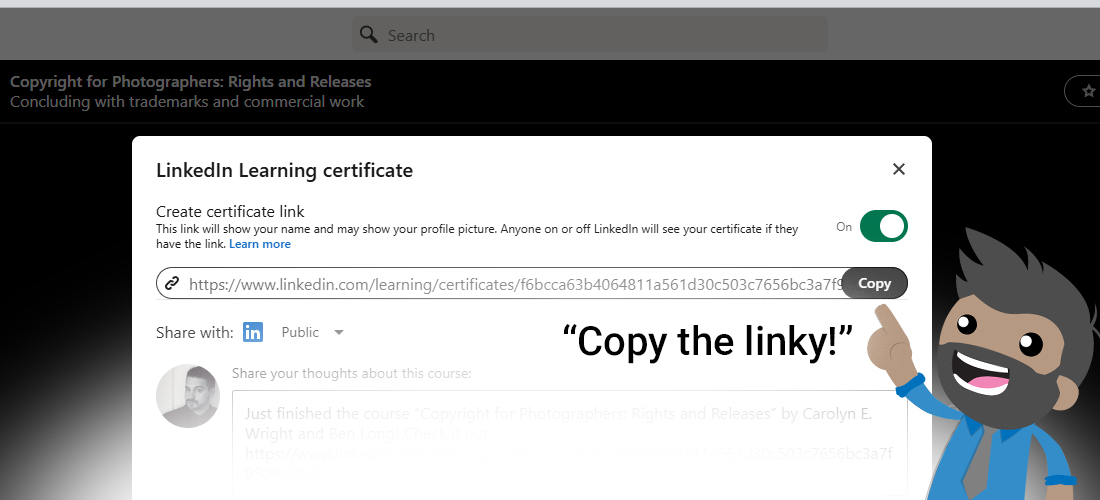
Step 3: Copy the full link once it is generated, and add that to the email you send to the Instructor when you are turning in your work. That’s the proof that you did the whole course, and that’s how you get your grade.
 Digital Media & Multimedia Design